GoHighLevel Workflow Not Triggering? Here’s The Complete Debug Checklist
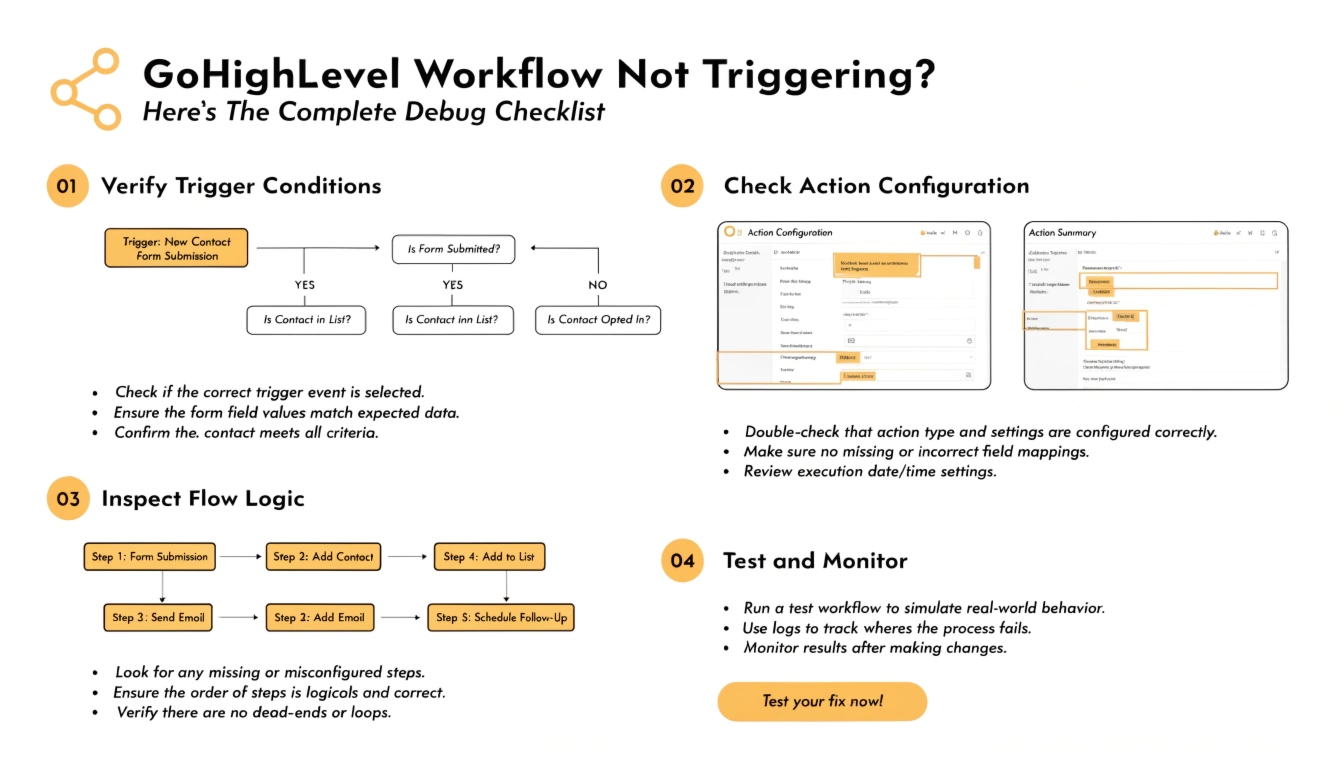
If your GoHighLevel workflow is not triggering, the cause is almost always one of ten things: the workflow is in Draft mode, the trigger condition doesn’t match the contact’s data, a filter is excluding the contact, the contact already entered the workflow once, the trigger event never actually happened, the workflow has a syntax error in conditions, the contact was created before the workflow existed, the wait step is silently holding execution.
The workflow is paused, or there’s a sub-account permission issue. This 10-step debug walks each one in order, from fastest checks to deepest investigation.
The fast answer: where to start
Before running through all 10 steps, do this 30-second check: open the workflow, click History in the top right corner, and look for your test contact. The history shows everything.
If your contact appears with a green checkmark, the workflow ran successfully — meaning your assumption that ‘it didn’t trigger’ is wrong, and the real problem is elsewhere (an email step that bounced, an SMS step that didn’t deliver, a wait step that’s still counting down). If your contact does not appear in history at all, the workflow truly didn’t fire and you need this debug guide.
Read this: GoHighLevel for Business: The 2026 Industry-Specific Operating System
Check if the workflow is published
This is the most common cause and the easiest to miss. A workflow in Draft mode looks identical to a Published workflow in most views — but draft workflows never fire, no matter how perfect the trigger configuration.
Open the workflow and look at the top right corner. You’ll see either ‘Draft’ or ‘Publish.’ If it says Draft, click Publish. Workflows save in draft form by default after every edit, so even a workflow that worked yesterday could be in Draft today if someone made an edit and forgot to republish.
Quick test: after publishing, send a test contact through. If history populates, the only problem was the draft state. About 25-30% of ‘workflow not triggering’ issues resolve here.
Verify the trigger event actually happened
Workflows respond to events, not to states. A ‘Contact Created’ workflow fires only when a contact is created from that moment forward — it does not fire for contacts that already existed. A ‘Form Submitted’ workflow fires only when someone submits the form, not when their contact record is updated.
To verify the trigger event occurred, check the contact’s activity log. Open the contact, scroll to the activity feed, and look for the specific event your workflow is listening for. If you don’t see the event, the trigger never fired — the workflow is working correctly, but your test method didn’t generate the right event.
Common confusion: adding a tag manually to a contact does NOT fire a ‘Tag Added’ trigger in older workflow setups unless the workflow trigger explicitly listens for manual tag changes. Check the trigger configuration’s ‘Filters’ section for any ‘Source’ restrictions.
Check the trigger filters
Almost every trigger has filter options that narrow when it fires. A ‘Form Submitted’ trigger can be filtered to a specific form. A ‘Contact Created’ trigger can be filtered by source. A ‘Pipeline Stage Changed’ trigger can be filtered to a specific pipeline and stage.
Open your workflow’s trigger and review every filter. The most common mistake: a ‘Form Submitted’ trigger with ‘Form is: Contact Us’ configured — but your test went through a different form. The trigger fires for the wrong form gets ignored, even though both forms exist on the same site.
Fix: either remove the filter so the trigger fires for any matching event, or ensure your test contact triggers the exact event your filter requires.
Verify the contact data matches workflow conditions
If your workflow uses ‘Wait until contact has tag X’ or ‘Continue if custom field equals Y,’ the contact must actually match those conditions. Open the contact’s profile and confirm the tag exists exactly as the workflow expects (tags are case-sensitive in some configurations) and that custom fields hold the expected values.
Common gotchas: a tag named ‘New Lead’ won’t match a condition checking for ‘new lead’ if the workflow does case-sensitive matching. A custom field expecting the number 100 won’t match if the field contains the text ‘100’ as a string. When in doubt, click ‘View Logs’ on the workflow to see exactly what data the workflow saw at the time of execution.
Check if the contact already went through the workflow
By default, GoHighLevel workflows do not re-enter the same contact unless explicitly configured to. If your test contact already entered this workflow once (even days ago, even if it was never completed), the workflow will silently skip them on the next attempt.
To check: open the workflow, click Settings (gear icon), and look for the ‘Allow Re-Entry’ option. If it’s off, contacts can enter the workflow only once. To force re-testing with the same contact, either turn on Allow Re-Entry, or remove the contact from the workflow first via the Contacts tab inside the workflow view.
This is the second most common cause we see in support tickets — about 15-20% of ‘not triggering’ cases resolve here.
Look for hidden wait steps
Some workflows aren’t actually ‘not triggering’ — they’re triggering correctly and then waiting silently. If your workflow has a Wait step early in the sequence (especially ‘Wait until specific date/time’ or ‘Wait for X days’), the contact entered the workflow but is sitting at the wait step, not yet reaching the action you’re testing for.
Open the workflow’s execution log. If your contact appears but execution stopped at a wait step, that’s the issue. Either shorten the wait for testing purposes, or wait the configured time and re-check.
Check sub-account vs agency-level workflow
Workflows live inside specific sub-accounts. If you created a workflow at the agency dashboard level but your contacts are in a sub-account, the workflow won’t fire for them — agency-level workflows only run when triggers happen at the agency level.
To verify: confirm the workflow is inside the same sub-account as your contacts. The breadcrumb at the top of the screen shows which sub-account you’re currently in. If you accidentally built the workflow in ‘Sample Account’ or another test sub-account, recreate it in the production sub-account where your contacts live.
Verify the workflow isn’t paused
In addition to Draft/Publish status, workflows can be individually paused without being unpublished. A paused workflow shows in the workflow list with a pause icon next to its name.
From the workflow list view (Automation → Workflows), look for any pause indicators next to your workflow’s name. If you see one, click into the workflow and click Resume. This sometimes happens accidentally when an admin pauses workflows in bulk during maintenance and forgets to resume specific ones.
Check for permission and integration issues
If your trigger relies on an external integration — Stripe payment received, Calendly booking, a webhook from an external tool — the integration must be properly connected. A workflow listening for ‘Stripe Payment Received’ won’t fire if the Stripe connection in your GHL account is broken or unauthorized.
Check Settings → Integrations and verify the relevant integration shows ‘Connected’ status. If any integration shows an error or is disconnected, fix the integration first; then re-test the workflow.
For webhook-triggered workflows, use a tool like webhook.site to verify the external system is actually sending data to GoHighLevel’s endpoint. If no data arrives at the webhook URL, the problem is upstream — not in GoHighLevel.
Examine the workflow execution log in detail
If steps 1-9 didn’t find the issue, the workflow execution log is your final diagnostic tool. Inside the workflow, click History → click your test contact’s row → expand each step to see exactly what happened.
The log shows three things for every step: whether the step ran (Completed, Skipped, Failed), what data was evaluated, and any error messages. A ‘Skipped’ step usually means a filter rejected the contact. A ‘Failed’ step means GHL tried to execute but something went wrong — like an email step where the contact has no email address.
If the log shows a step Failed with a generic error, screenshot it and submit a support ticket to HighLevel. They can see internal logs you cannot.
The diagnostic order (fast to slow)
In our experience supporting agency clients, here’s how ‘workflow not triggering’ tickets usually break down:
If you work the steps in this order, most issues resolve in the first 10 minutes.
Read this: GoHighLevel for Real Estate 2026: The Ultimate Lead Conversion Engine
How to prevent ‘workflow not triggering’ issues
After fixing the immediate problem, three habits prevent it from coming back.
First, always test with a freshly-created contact. Existing contacts have history that can block re-entry, hold caches from old workflow versions, and produce confusing results. A brand-new test contact created right before the test eliminates these variables.
Second, always click Publish explicitly after editing. The Publish button can be subtle, and the workflow autosaves in Draft after every change. Make ‘Publish or rollback’ your last action before closing any workflow edit.
Third, build workflows with an obvious first step. Add a ‘Send Internal Notification’ or ‘Add Tag: Workflow-Started’ as the very first action in every workflow. When debugging later, this internal action confirms whether the workflow fired or not, without needing to wait for downstream emails or SMS.
Frequently Asked Questions
Why is my GoHighLevel workflow not triggering?
The most common reasons are: the workflow is in Draft mode rather than Published, the contact already entered the workflow once and re-entry is blocked, the trigger event never actually happened, a filter is excluding the contact, or the workflow lives in a different sub-account than your contacts.
Work through the 10-step debug above in order — most issues resolve in the first three steps.
How do I test a GoHighLevel workflow safely?
Create a brand-new test contact with a real phone number and email you control, ensure the workflow is Published, and trigger the workflow by performing the actual trigger event (submitting the form, creating the contact, changing the pipeline stage).
Then check the workflow’s History tab to see whether the contact entered and which steps executed. A fresh contact avoids re-entry blocking and version-cache issues.
Why does my workflow fire for some contacts but not others?
This almost always means a filter or condition is treating contacts differently. Open the workflow trigger and check every filter (source, form, tag, custom field, etc.).
Then compare a contact where it fires versus one where it doesn’t — find the data point that differs. The mismatch is your answer. Case-sensitivity on tags and exact-match conditions on custom fields are the most common culprits.
Can a GoHighLevel workflow trigger retroactively for existing contacts?
Not by default. Triggers fire on events that happen after the workflow is built and published. To run a workflow against existing contacts, use the Bulk Actions feature in the Contacts tab to manually add contacts to the workflow, or build a separate trigger like ‘Contact Tag Added’ and then bulk-tag the existing contacts.
What’s the difference between Draft and Paused workflows?
A Draft workflow has never been activated and won’t fire for any trigger. A Paused workflow was previously Published but has been temporarily stopped — it won’t fire new triggers, but contacts already inside the workflow may continue executing depending on settings.
To resume a Paused workflow, click into it and select Resume. To activate a Draft workflow, click Publish.
Why does the workflow History show my contact entered but no actions ran?
This means the workflow triggered correctly but every action step was skipped — usually because the contact didn’t pass the conditions on each step (a wait-until condition never satisfied, an if/else branch evaluated false, a filter on the action rejected the contact).
Expand each step in the history to see specifically why it was skipped. The reason is shown in the step’s details.
Do GoHighLevel workflows trigger on Apple/Google calendar bookings?
Yes, when the booking happens through a GoHighLevel calendar. External calendar bookings (booking made directly in Google Calendar or Apple Calendar without using a GHL calendar link) don’t fire GHL triggers — only events that happen inside the GoHighLevel platform fire its workflow triggers.
If you’re using Calendly or another external scheduler, you’ll need a webhook or Zapier integration to bridge the event.
Need help fixing a stubborn workflow?
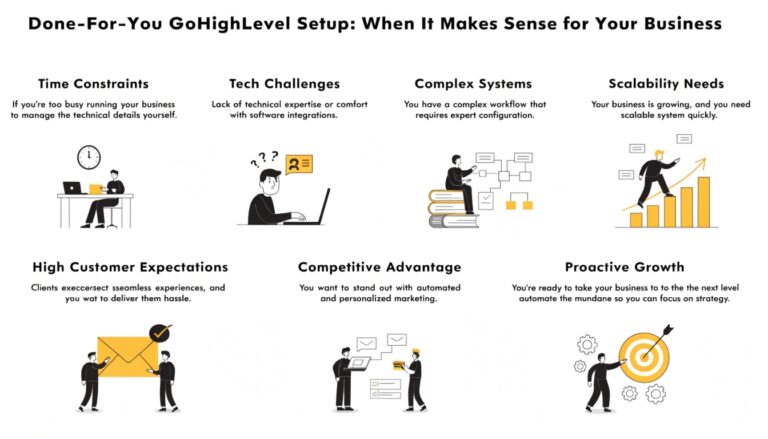
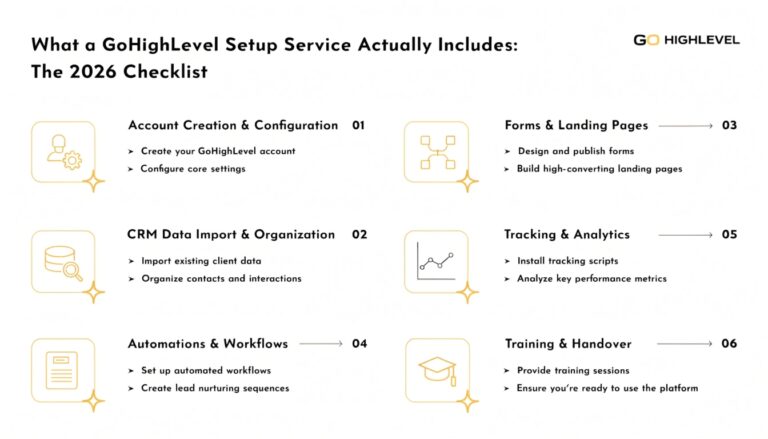
Some workflow issues resolve in 30 seconds. Others reveal deeper problems with how a sub-account was originally configured. If you’ve worked through the 10-step debug and your workflow still won’t fire, or you’d rather have someone else handle the diagnostic, we audit GoHighLevel workflows as part of our setup service — finding broken workflows, fixing them, and rebuilding them with proper testing safeguards.
Book a free GHL audit and we’ll review your workflow that isn’t firing, identify the cause, and either fix it during the call or quote the work if it’s part of a larger configuration issue. Most workflow problems we see resolve in under an hour once the root cause is identified.