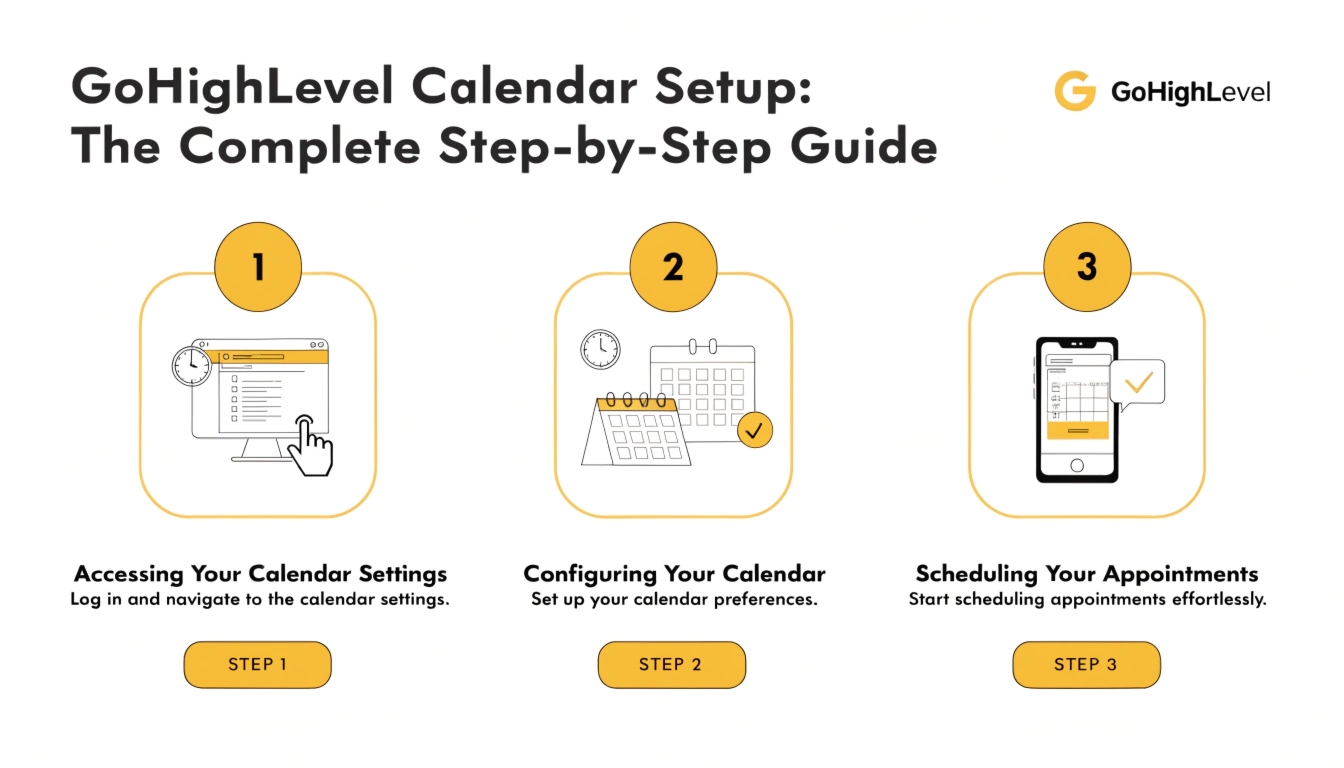
GoHighLevel Calendar Setup: The Complete Step-by-Step Guide
GoHighLevel calendar setup turns the platform into a complete appointment booking system that captures leads, syncs with Google or Outlook calendars, sends automated reminders, and triggers follow-up workflows when slots are booked. A typical calendar setup takes 30-45 minutes for a single user and 60-90 minutes for a team with round-robin routing.
This guide walks through every step in order: creating the calendar, configuring availability, connecting team members, setting up automated notifications, and embedding the calendar on your website. By the end, your booking system is production-ready and feeding directly into your workflows.
Calendar types in GoHighLevel
Before creating your first calendar, decide which of the three calendar types you need. They’re configured differently and produce different booking experiences.
Round Robin Calendar
Best for teams. When someone books, the appointment automatically assigns to the next available team member in rotation. Used by agencies with multiple specialists, sales teams with multiple reps, or service businesses with multiple technicians. The most popular calendar type for businesses with more than one user.
Personal Calendar
Best for solo operators. Tied to a single user. Coaches, consultants, and solo agents who want a clean ‘book a call with me’ calendar use this type. Setup is fast because there’s no team routing logic to configure.
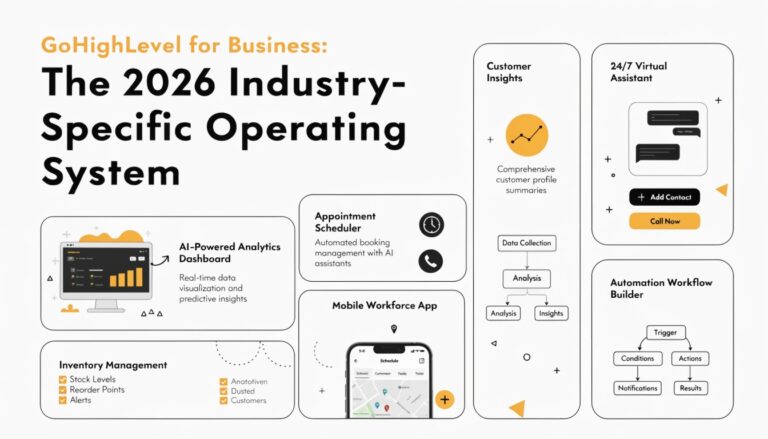
Read this: GoHighLevel for Business: The 2026 Industry-Specific Operating System
Class Booking Calendar
Best for group sessions. Multiple people book the same time slot up to a capacity limit. Used by yoga studios, group training, webinars with limited attendance, and group consultations. Configuration includes capacity rules and waitlist behavior.
Create a calendar group
Calendar groups organize your calendars under a single bookable URL. Even if you only have one calendar, create a group first – it keeps URLs clean and lets you add more calendars later without breaking links.
Inside your GoHighLevel sub-account, go to Calendars – Calendar Settings – Groups – New Group. Name the group something descriptive (‘Strategy Calls’ or ‘Patient Bookings’ rather than ‘Group 1’). Set the URL slug – this becomes part of your public booking link, so keep it short and brand-aligned.
Create the calendar
Inside your new group, click New Calendar and select the type (Round Robin, Personal, or Class Booking). Then configure the basics:
Configure availability
Availability defines when slots can be booked. Two configurations matter most:
Office hours: set the days of the week and time ranges when appointments can be booked. Most businesses set Mon-Fri 9am-5pm initially, then customize per calendar (e.g., a discovery call calendar might offer evenings while a consultation calendar stays business hours).
Notice period: the minimum time between when someone books and when the appointment starts. Setting this to 4-24 hours prevents last-minute bookings you can’t prep for. Service businesses often set 24 hours; coaches often set 4-8 hours.
Date range: how far in the future bookings are allowed. Default is 30 days. For high-demand calendars (busy doctors, popular consultants), restrict to 14 days. For lower-demand calendars, extend to 60-90 days.
Add team members (Round Robin only)
Skip this step for Personal calendars. For Round Robin calendars, click Team Members and add the users who’ll receive bookings. Each user must already exist in your sub-account under Settings – My Staff.
Configure two important options per team member:
Connect Google Calendar or Outlook
Without external calendar sync, GoHighLevel only knows about appointments booked through GHL. If your team uses Google or Outlook for personal scheduling, those calendars must connect to avoid double-booking.
Each team member connects their own calendar at Settings – My Profile – Calendars – Connect Calendar. They authorize Google or Microsoft, select which calendars sync, and pick the direction (check-only vs. two-way sync).
Two-way sync writes GHL appointments back into Google/Outlook, so the team member sees them in their daily view alongside their other meetings. This is what most teams want. Check-only sync just reads availability from the external calendar without writing GHL events to it.
Configure form fields
By default, GHL calendars ask for name, email, and phone. Most businesses need more. Click Form & Payment – Custom Form to add fields. Common additions:
Keep the form short – 3-5 fields total. Every additional field reduces booking completion rate. The qualification questions earn their place if the answers actually change how the appointment runs.
Set up confirmation and reminder messages
Automated communications around bookings dramatically reduce no-shows. Click Notifications & Reminders inside the calendar settings. Configure these four messages:
Booking confirmation
Sent immediately when someone books. Include the appointment time (with their time zone), what they should prepare, and what to expect. Send via both email and SMS for best delivery.
24-hour reminder
Sent 24 hours before the appointment. Brief and friendly: ‘See you tomorrow at [time]. Reply YES to confirm or RESCHEDULE if you need to change.’ This single reminder reduces no-shows 20-30% on its own.
2-hour reminder
Sent 2 hours before. Most useful for in-person appointments where address matters: ‘Quick reminder, your appointment is in 2 hours. Address: [address]. Free parking in back.’ For phone/Zoom calls, include the call link.
Cancellation/reschedule notification
Sent if the booker cancels or reschedules. Mostly for internal team notification, but a polite acknowledgment to the booker keeps the relationship warm even when they back out.
Test bookings end-to-end
Before publishing the calendar, test it yourself. Open the public booking URL in an incognito window (so you’re not pre-logged-in as yourself). Walk through:
Run this test on every calendar before publishing it. Skipping the test is how a calendar goes live with broken time zone handling, missing reminders, or no-show emails sent to the wrong address.
Embed or share the calendar
With testing complete, choose how the calendar reaches bookers. Three options:
Public URL
Found under Share – the simplest option. Send the URL via email, SMS, or social. Bookers land directly on a hosted GHL booking page. Best for sales reps, consultants, or any time you want to send a calendar link in a one-to-one conversation.
Website embed
For your main ‘Book a Call’ or ‘Schedule Consultation’ page. GHL provides an iframe embed code or a pop-up widget. Iframe shows the calendar inline. Pop-up shows a button that opens the calendar in a modal. Most websites use iframe.
Funnel integration
If you build sales funnels in GHL, the calendar can be added as a funnel step. Configure the funnel to trigger calendar booking after the prospect completes a previous step. This unifies funnel and calendar analytics.
Connect bookings to workflows
This is where calendars become powerful. A workflow triggered by ‘Appointment Booked’ can do anything: send a confirmation email with a Zoom link, add the booker to a sales pipeline, send pre-call homework, notify the assigned team member via Slack, or all of the above.
Build the workflow with trigger ‘Appointment Booked’, filter to the specific calendar, and add actions. The most common useful workflow: send a confirmation email with prep materials, add a tag like ‘Booked-Discovery-Call’, move the contact to the right pipeline stage, and notify your team.
Common calendar setup problems
Time zones showing wrong
Each calendar has its own time zone setting separate from the user’s profile time zone. Confirm the calendar’s time zone matches your business location, not your personal travel location.
For multi-time-zone teams, the calendar shows the booker’s time zone automatically based on their browser – but the underlying calendar storage uses the configured time zone.
Slots not appearing
Most common cause: notice period excludes all near-term slots. If you set 24-hour notice but it’s 9am Monday and the office closes at 5pm with no availability beyond next Friday, the booker sees nothing. Either shorten the notice period, extend the date range, or expand office hours.
Read this: GoHighLevel for Real Estate 2026: The Ultimate Lead Conversion Engine
Double-booking happening
The team member’s external calendar isn’t connected, or it’s connected as check-only with stale data. Verify each Round Robin team member has Google or Outlook two-way sync enabled and authorized.
Also verify the user is checking the right calendar in their connected account – many users have multiple calendars and accidentally sync the wrong one.
Reminders not arriving
Three possible causes: A2P 10DLC isn’t registered (for SMS reminders), the contact’s number/email is invalid, or the reminder workflow is paused. Check the calendar’s notification log to see if GHL attempted to send. If yes but the message didn’t arrive, the diagnostic moves to your SMS/email deliverability checklists.
Bookings firing the wrong workflow
Workflow trigger filters need to match the specific calendar that received the booking. A workflow filtered to ‘any calendar’ fires for every booking on every calendar.
A workflow filtered to ‘Discovery Call calendar only’ fires only when that specific calendar receives a booking. Set filters explicitly to avoid surprises.
Calendar best practices
Frequently Asked Questions
How do I set up a calendar in GoHighLevel?
Go to Calendars – Calendar Settings – Groups, create a calendar group, then add a calendar inside it. Choose your calendar type (Round Robin for teams, Personal for solo users, Class Booking for group sessions), configure availability and office hours, connect team members’ Google or Outlook calendars to prevent double-booking, set up confirmation and reminder messages, and test end-to-end before sharing the booking URL.
Can GoHighLevel sync with Google Calendar?
Yes. Each team member connects their personal Google Calendar at Settings – My Profile – Calendars. Two-way sync writes GHL appointments into Google Calendar and reads Google events back to block GHL availability.
Check-only sync just reads availability without writing GHL events to Google. Two-way is recommended for most users.
What’s the difference between Round Robin and Personal calendars?
Round Robin calendars assign bookings to multiple team members in rotation – best for teams. Personal calendars are tied to a single user – best for solo operators.
Round Robin requires more configuration (team members, priority, individual calendar connections) but lets a busy team distribute appointments fairly without manual scheduling.
How do I reduce no-shows with GoHighLevel calendars?
Three reminders are the baseline: an immediate confirmation, a 24-hour reminder, and a 2-hour reminder. Send via both email and SMS.
Most businesses see no-show rates drop from 20-30% to under 10% with this cadence. Adding a confirmation-reply requirement (‘Reply YES to confirm’) further reduces no-shows by identifying flaky bookers early.
Can I embed a GoHighLevel calendar on my website?
Yes. Calendar settings include iframe embed code and pop-up widget options. Iframe displays the calendar inline on your page. Pop-up shows a button that opens the calendar in a modal.
Both options preserve all functionality including form fields, time zone handling, and confirmation flows. Most websites use iframe for primary booking pages and pop-up for sidebar CTAs.
Why aren’t my calendar reminders sending?
Most common cause: A2P 10DLC registration is incomplete, so SMS reminders silently fail to deliver. Check Phone Numbers – Trust Center for your A2P status. Other causes: the reminder workflow is paused, the contact’s phone or email is invalid, or the reminder time window has already passed when the appointment was booked. Check the calendar’s notification log to see specific delivery attempts.
How long does it take to set up a GoHighLevel calendar?
A basic Personal calendar takes 15-20 minutes. A Round Robin team calendar with Google sync, custom form fields, and full notification workflows takes 60-90 minutes. Complex setups with multiple calendar groups, conditional team routing, and funnel integration take 2-4 hours. Most of the time is testing and edge-case verification rather than initial configuration.
Need help building a calendar that converts?
A working calendar is the difference between leads who book and leads who scroll past. If you’d rather have your calendar professionally configured – including team round-robin, Google sync, three-tier reminder cadence, and workflow integration – we set up GHL calendars as part of every setup project we ship.
Book a free GHL audit and we’ll review your current booking flow, identify where leads are dropping out, and quote a complete calendar configuration tuned to your business.