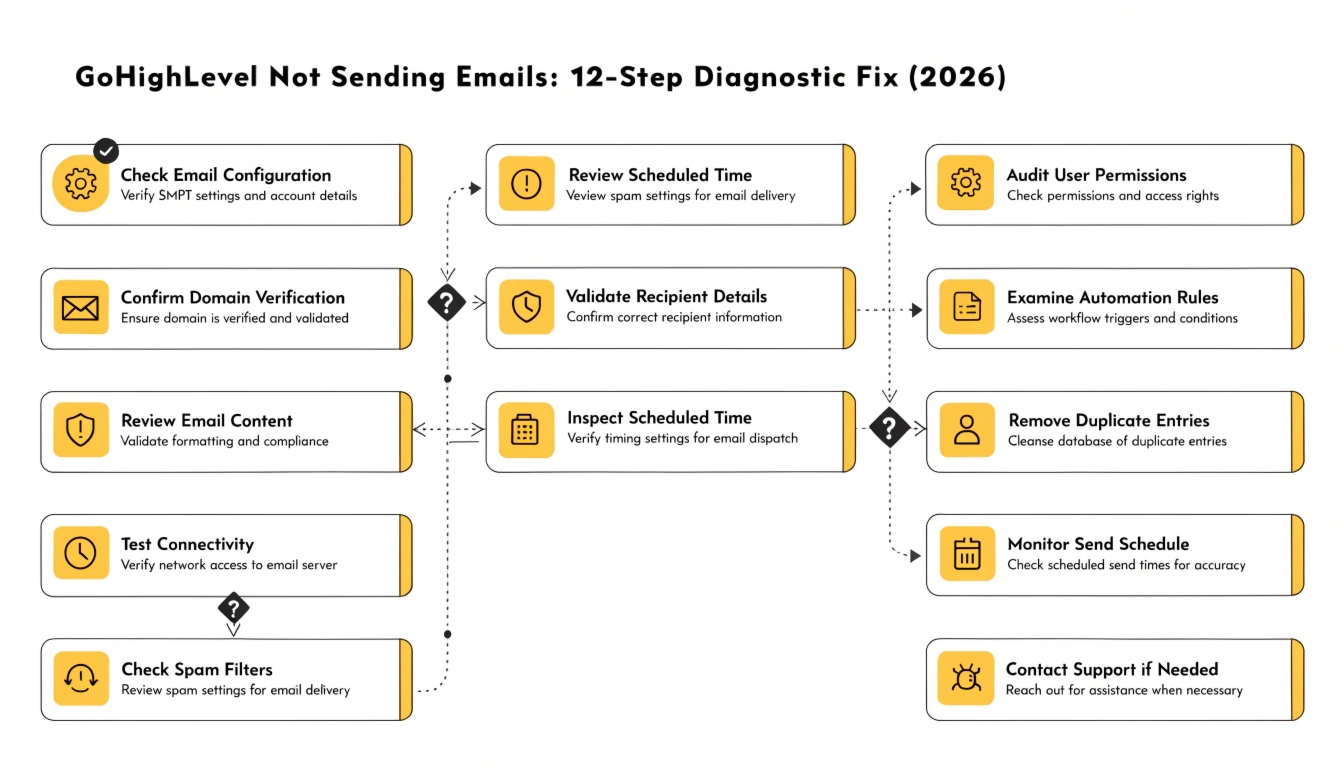
GoHighLevel Not Sending Emails: 12-Step Diagnostic Fix (2026)
If GoHighLevel is not sending your emails, the cause is almost always one of five things: Mailgun isn’t connected, SPF/DKIM/DMARC records aren’t configured on your sending domain, your workflow trigger isn’t actually firing, the email is going to spam, or your sending reputation has been throttled by HighLevel for high bounce rates.
This 12-step diagnostic walks through each cause in the order you should check them — starting with the fastest fixes and ending with the technical ones.
Why GoHighLevel emails fail?
GoHighLevel doesn’t actually send emails directly — it routes them through an email service provider, typically Mailgun.
When your emails aren’t going out, the problem is somewhere in the chain between GoHighLevel, your sending domain, Mailgun, and the recipient’s inbox. There are 12 specific places this chain can break. Work through them in order.
Check if the workflow actually fired
Before assuming the email is the problem, confirm the workflow that’s supposed to send it actually ran. In GoHighLevel, go to Automation → Workflows → [your workflow]. Click the workflow, then click “History” in the top right.
If you don’t see your test contact in the history at all, the workflow trigger didn’t fire — and your email never had a chance to send.
The problem isn’t email; it’s the trigger. Common reasons: the trigger condition wasn’t met, the contact was already tagged and the workflow skipped them, or the workflow is paused. Check the workflow’s status indicator at the top of the page — it should say “Publish” not “Draft”.
If the contact appears in history with a green checkmark next to the email step, the workflow ran and tried to send. Move to Step 2.
Read this: GoHighLevel for Chiropractors 2026: Fill Your Schedule on Autopilot
Check the contact’s email subscription status
GoHighLevel won’t send to contacts marked as unsubscribed, bounced, or marked as spam. Open the contact’s profile, scroll to the email section, and check the status.
If the contact is in any of these states, that’s why they’re not receiving emails. This isn’t a platform problem — the contact has opted out of receiving emails from you.
Verify Mailgun is connected to your sub-account
GoHighLevel requires an email service provider to actually send emails. The most common option is Mailgun. Without Mailgun connected, your emails sit in queue and never go out.
To check: Go to Settings → Email Services → check if Mailgun shows “Connected” status with a green indicator. If you see “Not Connected” or an error message, that’s your problem. You need to either connect Mailgun (recommended) or use HighLevel’s default LC Email service (limited deliverability).
If you don’t have Mailgun set up at all, the complete configuration walkthrough is in our GoHighLevel Mailgun Setup guide.
Check your Mailgun account status
Even if Mailgun shows as connected in GoHighLevel, the Mailgun account itself can be paused or restricted. Log into mailgun.com and check three things on the dashboard:
Mailgun’s free trial plan has a 100-email-per-day cap. If you’ve exceeded this, emails silently queue. Upgrade to a paid Mailgun plan (typically $35/month for 50,000 sends) for production use.
Verify your sending domain’s SPF record
SPF (Sender Policy Framework) tells receiving mail servers which servers are authorized to send email for your domain. Without it, your emails get classified as spam or rejected entirely.
To check: Use a tool like MXToolbox.com → enter your sending domain → select “SPF Lookup.” You should see an SPF record that includes Mailgun’s servers, typically containing the text “include:mailgun.org”.
If no SPF record exists, or the record doesn’t include Mailgun, add this DNS record to your domain:
DNS changes typically propagate within 1-4 hours. Some hosts take up to 24 hours.
Verify your DKIM record
DKIM (DomainKeys Identified Mail) is a cryptographic signature that proves your emails actually came from you. Without DKIM, Gmail, Outlook, and Apple Mail aggressively filter your emails to spam.
Mailgun generates a DKIM record for you when you add your sending domain. Log into Mailgun → Sending → Domains → click your domain → copy the DKIM record.
Add this as a TXT record in your DNS provider:
After adding, return to Mailgun and click “Verify DNS Settings.” Status should change to “Verified” within 1-4 hours.
Set up DMARC (especially important in 2026)
As of February 2024, Gmail and Yahoo require DMARC for bulk senders (anyone sending 5,000+ emails per day). Even below that threshold, having DMARC dramatically improves deliverability.
Add a DMARC record to your DNS:
Start with policy “p=none” so you can monitor delivery without rejecting emails. After 2-4 weeks of monitoring (no failures in your DMARC reports), upgrade to “p=quarantine” for stronger protection.
Check the email is actually triggering, not the contact being filtered
This is the most common cause we see in agency clients. The workflow has conditions like “Send only to contacts tagged ‘VIP'” — but the test contact you’re checking with isn’t tagged VIP. The workflow fires, but the email step is skipped because the contact doesn’t match the filter.
In the workflow history, look at the specific contact’s path. Each step shows whether it was “Completed,” “Skipped,” or “Failed.” If your email step says “Skipped,” the contact didn’t meet the conditions you set. Either fix the conditions or fix the contact’s tag/status.
Check the spam folder (yours and the recipient’s)
If the diagnostic checks above pass, the email is being sent — it’s just going to spam. To verify, send a test email from your GHL workflow to:
If the email shows up in any of these spam folders, you have a deliverability problem rather than a sending problem. The fixes for deliverability are in Steps 10-12.
Run a spam test with Mail-Tester
Go to mail-tester.com and copy the unique email address it shows. Send a test email from your GHL workflow to that address. Then click “Check your score” on Mail-Tester.
The score ranges from 0 to 10. Anything under 8 means you have deliverability issues. The report shows exactly what’s wrong — typically one of:
Check your HighLevel sender reputation
HighLevel monitors your bounce rate and spam complaint rate. If your sub-account exceeds certain thresholds — typically more than 5% hard bounces in a 30-day window or more than 0.3% spam complaints — HighLevel temporarily throttles your sending or pauses your email service entirely.
To check: Settings → Email Services → look for any warning banners. If you see “Sending throttled” or “Email service paused,” your reputation has been flagged.
The fix is twofold. First, clean your email list — remove all hard-bounced addresses and contacts who haven’t opened any email in the last 90 days. Second, slow down your sends temporarily and only email contacts who recently engaged. Reputation rebuilds over 2-4 weeks of clean sending.
Contact HighLevel or Mailgun support
If all 11 steps above check out and emails still aren’t sending, the problem is platform-side. Open a support ticket with the relevant party.
Contact HighLevel support if: the workflow fires correctly, Mailgun is connected and verified, your DNS records pass MXToolbox, and your sender reputation looks clean — but emails still don’t leave the platform.
Contact Mailgun support if: your test emails to mail-tester.com don’t arrive at all, or Mailgun’s dashboard shows “sent” but the email never lands. Mailgun support can check their server logs and tell you exactly what happened to the email after it left GoHighLevel.
The fast diagnostic order
In our experience supporting agency clients, 80% of “GoHighLevel not sending emails” tickets resolve in the first three steps above. The typical diagnosis order:
How to prevent email sending problems from recurring
Once your emails are sending again, three habits prevent the same problem from coming back.
First, run a Mail-Tester check monthly. Spam filters evolve constantly; a domain that scored 10/10 in January can drop to 6/10 by June if you don’t monitor.
Second, clean your email list quarterly. Remove hard bounces immediately and unengaged contacts (no opens in 90+ days) every 3 months. Sending to unengaged contacts is the fastest way to damage your sender reputation.
Third, set up DMARC reporting and review the reports monthly. DMARC reports tell you who’s trying to spoof your domain and how your real emails are being delivered. Most agencies skip this; the ones that don’t catch problems weeks earlier.
Read this: GoHighLevel vs Competitors 2026: The Ultimate Comparison Guide
Frequently Asked Questions
Why are my GoHighLevel emails not sending?
GoHighLevel emails fail to send for five main reasons: the workflow trigger didn’t fire, the contact is unsubscribed or bounced, Mailgun isn’t connected properly, SPF/DKIM/DMARC DNS records are missing, or your sender reputation has been throttled by HighLevel. Work through the 12-step diagnostic above in order — most issues resolve in the first three steps.
How do I check if my GoHighLevel workflow is firing?
Go to Automation → Workflows → click your workflow → click “History” in the top right. The history shows every contact that entered the workflow, which steps they completed, and where they currently are in the sequence.
If your test contact doesn’t appear in history at all, the workflow trigger didn’t fire — the problem is with the trigger condition, not the email.
Do I need Mailgun for GoHighLevel emails to work?
Technically no — GoHighLevel has a built-in default email service called LC Email. But LC Email has significantly worse deliverability than Mailgun, especially for cold outreach or larger sends.
For any serious email volume (over a few hundred sends per month), Mailgun is required. Most production GHL accounts use Mailgun.
How do I set up SPF, DKIM, and DMARC for GoHighLevel?
SPF is a DNS TXT record containing ‘v=spf1 include:mailgun.org ~all’. DKIM is generated by Mailgun and added as a TXT record at the selector Mailgun specifies. DMARC is a TXT record at _dmarc subdomain starting with ‘v=DMARC1’.
All three are added to your domain’s DNS through your DNS provider (GoDaddy, Cloudflare, Namecheap, etc.). Propagation typically takes 1-4 hours.
Why are my GoHighLevel emails going to spam?
Emails go to spam when SPF/DKIM/DMARC records aren’t configured, when the sending IP is on a blacklist, when email content triggers spam filters, or when sender reputation is poor. Run a Mail-Tester.com test to identify the exact cause — the report shows specifically which spam filter checks your email failed.
How long does it take to fix GoHighLevel email problems?
Workflow trigger issues fix immediately. Contact subscription issues fix immediately. Mailgun connection issues fix within an hour.
DNS record fixes propagate within 1-4 hours. Sender reputation rebuilding takes 2-4 weeks of clean sending. Most “not sending emails” cases resolve within 2-4 hours of starting the diagnostic.
Should I use Mailgun or SendGrid with GoHighLevel?
Mailgun is the recommended integration for GoHighLevel — it’s the official partner integration, has cleaner documentation, and supports all of GHL’s features.
SendGrid works via SMTP but requires more complex setup and doesn’t support some advanced features like real-time bounce processing. For 95% of users, Mailgun is the right choice.
Still stuck? Get a free email deliverability audit
If you’ve worked through the 12-step diagnostic above and emails still aren’t sending, we can help. Our GoHighLevel email deliverability audit reviews your Mailgun connection, DNS records, sending domain reputation, list hygiene, and workflow configuration. We tell you exactly what’s broken and how to fix it — typically within 24 hours.
Most of the cases we see resolve in under an hour once we identify the root cause. If you’d rather skip the diagnostic work, we also offer done-for-you Mailgun setup with complete DNS configuration as part of our GoHighLevel setup service.